
Help
Licensing help
Import a license file, move Probistica to a new computer, work offline, and renew. Click the License button on the Probistica tab to start.
The License window
The License group of the Probistica tab has one button. Its label shows the status. Click it to open the License window. The window shows the license in use, the machine ID, the license folders, and the result of the check of each license file.
Import the license file of a free trial
A free trial comes in one e-mail: a link to the release ZIP file, and the license file as an attachment. You send no machine ID, and you need no activation.
- Install Probistica with the setup program. See Install Probistica.
- Save the attached
.licfile. - Click the License button on the Probistica tab.
- Click Import license file... and select the file.
The button then shows the days that are left, for example Renew in 15 days.
Activate a key (Individual, planned)
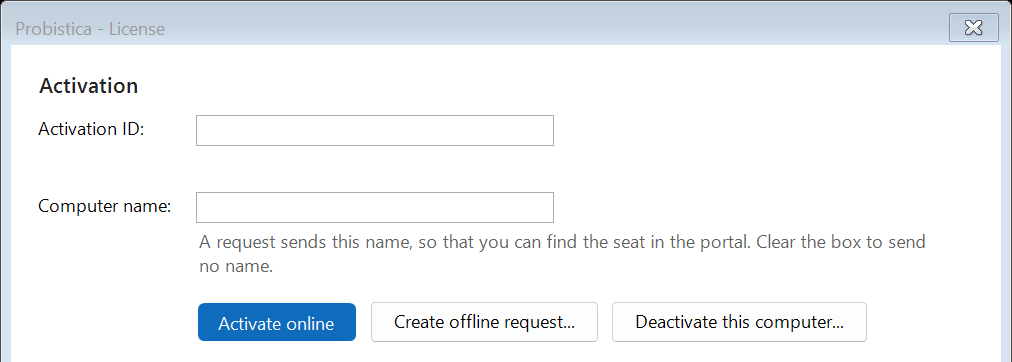
Online activation, deactivation through the service, and the customer portal are planned for the paid Individual license. They are not available now, because the activation service does not exist yet. These steps show how they will work.
- Click the License button on the Probistica tab.
- Type the activation ID from your e-mail in the Activation ID box, for example
PRB-7K2M-Q9PX-4D8T-WZ3D. Case, spaces, and hyphens do not matter. The line under the box tells you at once when a character is wrong. - Optional: clear the Computer name box to send no computer name.
- Click Activate online. Probistica saves the license file of the answer.
Keep the e-mail. You need the activation ID again to deactivate the computer.
Activate without internet
An offline request needs an activation ID. Use it only for the planned activation of an Individual license on a computer without internet. A free trial needs no offline request.
- Type the activation ID, then click Create offline request... and save the file
activation-request.json. Treat this file as confidential and send it only to support@probistica.com. - Send the file from another computer to support@probistica.com.
- You get a license file or an answer file back. Click Import license file... and select it.
Move to a new computer (Individual, planned)
- On the old computer, open the License window and type the activation ID from your e-mail.
- Click Deactivate this computer.... Probistica frees the seat and deletes the license file of this computer.
- On the new computer, install Probistica and activate with the same activation ID.
If Probistica gets no answer from the service, it shows a deactivation code and writes it to deactivation-codes.txt in the license folder. Enter the code in the customer portal, or send it to support. You can move a seat up to 3 times in any rolling 12 months; support can reset the count after a hardware failure.
A lost or broken computer
Planned: sign in to the customer portal with your activation ID and free the seat of that computer. Then activate on the new computer. If you cannot use the portal, contact support with your activation ID or the order number.
Renew
- From 30 days before the end, the button shows
Renew in N days. - Version 0.3.0 has no hosted activation service address built in, so it does not fetch a renewed license file automatically unless your IT department sets the Windows policy
ActivationUrl. Import the renewed file that you get from us. Once the hosted activation service launches, Probistica will check for a renewed file when Excel loads it, at most once a day (unless disabled by IT policy). - After the end date of a paid annual license, a 14-day grace period starts. Runs still work with a warning. After 14 days, the status is
Unlicensed. Your workbooks stay as they are. Free trials end on their stated date with no grace period.
Planned at paid launch: paid Individual subscriptions renew automatically each year at the current annual price until canceled. You receive a reminder before renewal and can cancel at any time before the renewal date; your license continues through the end of the paid year.
Install a license file (Corporate, trial, and offline)
- Save the
.licfile from the e-mail. - In the License window, click Import license file... and select the file. Probistica checks the file and copies only a usable file into
%LOCALAPPDATA%\Probistica\Licenses.
Do not edit a license file: a change of the signed license data makes the signature not valid. Your IT department can also put the file in a folder for all users. See For IT.
The status labels
| Label | Meaning |
|---|---|
Licensed | A valid license is in use. |
Renew in N days | The license ends in 30 days or less. |
Evaluation: N days | An evaluation license is in use. It ends in N days. |
License Expired | The license ended, but its grace period continues. Runs still work, with a warning. |
Unlicensed | No valid license is in use. Workbooks open and keep their values; new runs need a license. |
License | The license check itself failed. Click the button to see the reason. |
A message that you do not understand? See the license messages, or the full license guide.